Learn more
Less clicks, faster navigation
Two updates you will notice immediately.
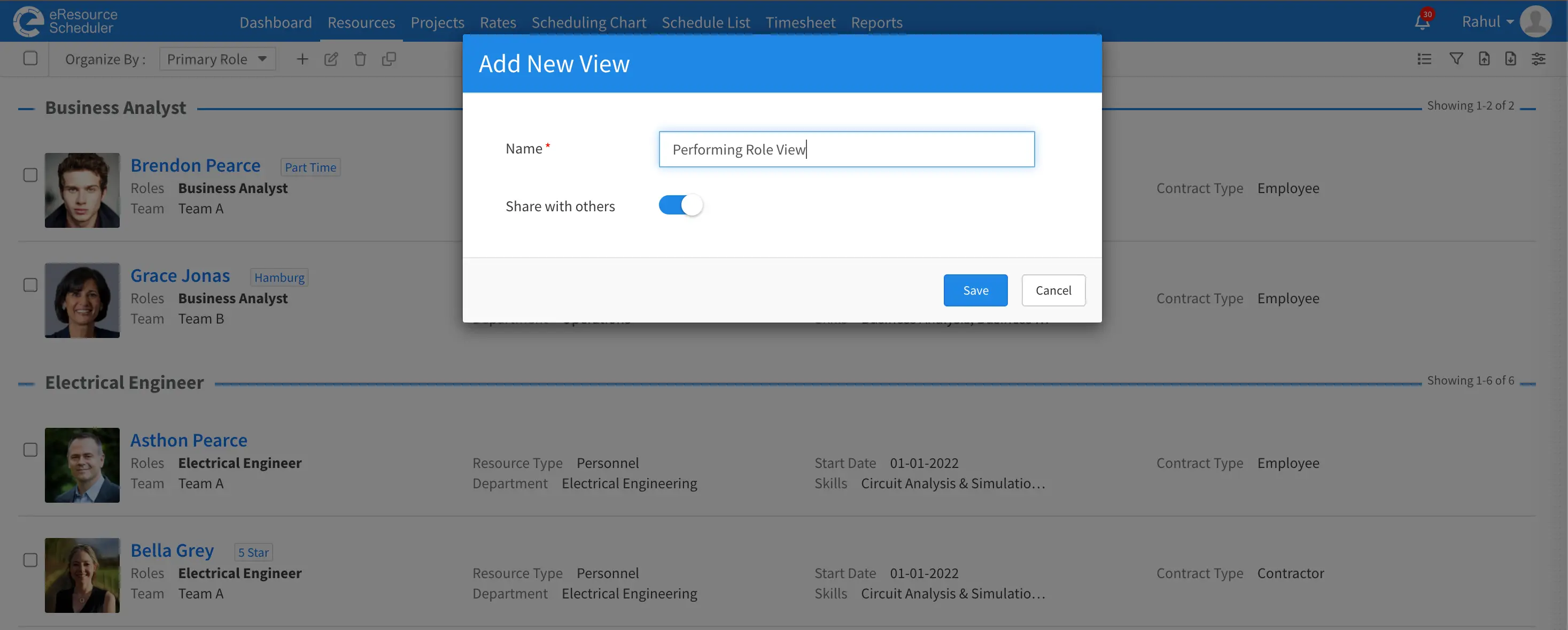
When creating a new view, you can now share it with your team in the same step. Just toggle on Share with others before saving and everyone has access instantly. No extra steps after the fact.
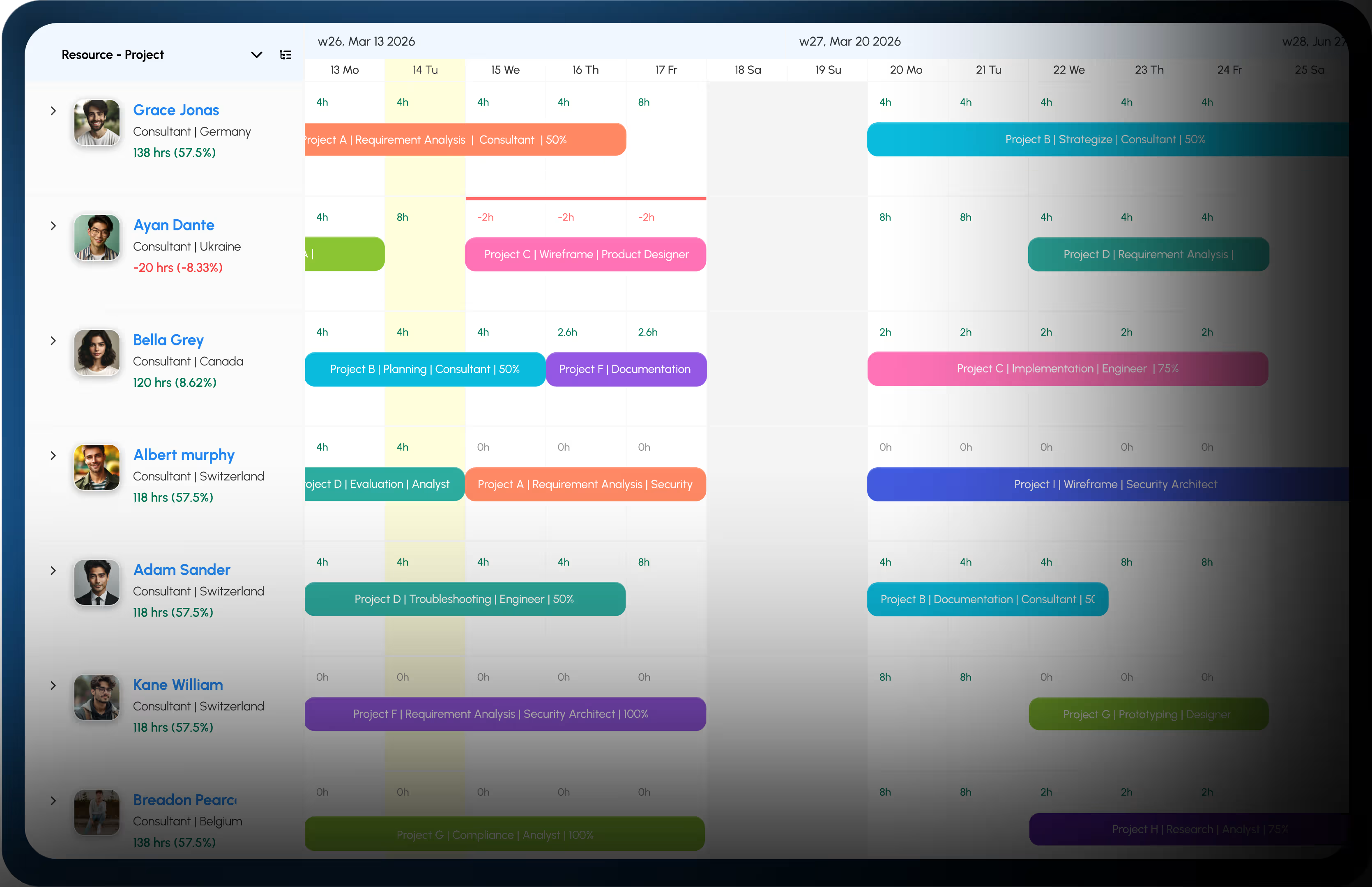
And navigating across your Scheduling Chart and Reports is now quicker too. Hold Shift and scroll to move horizontally through your data without lifting your hands off the keyboard
Before this update, sharing a view meant creating it first and then going back to share it separately. Now both happen in one step.
When you open the Add New View dialog, you will see a Share with others toggle. Switch it on before saving and your view is immediately available to your team. No follow-up steps, no back and forth.
This is especially useful when setting up views for a new project or onboarding a team. Create the view, share it, and everyone is aligned from the start.
If you are setting up multiple views for your team, toggle Share with others on for each one during creation rather than going back to share them individually afterwards.
Navigating across long timelines and wide reports used to mean reaching for the scrollbar or using the trackpad in a specific way. Now it is simpler.
Hold Shift and scroll with your mouse wheel to move horizontally across the Scheduling Chart or any report. It works instantly, keeps your hands on the keyboard, and makes scanning across weeks or months of data much faster.
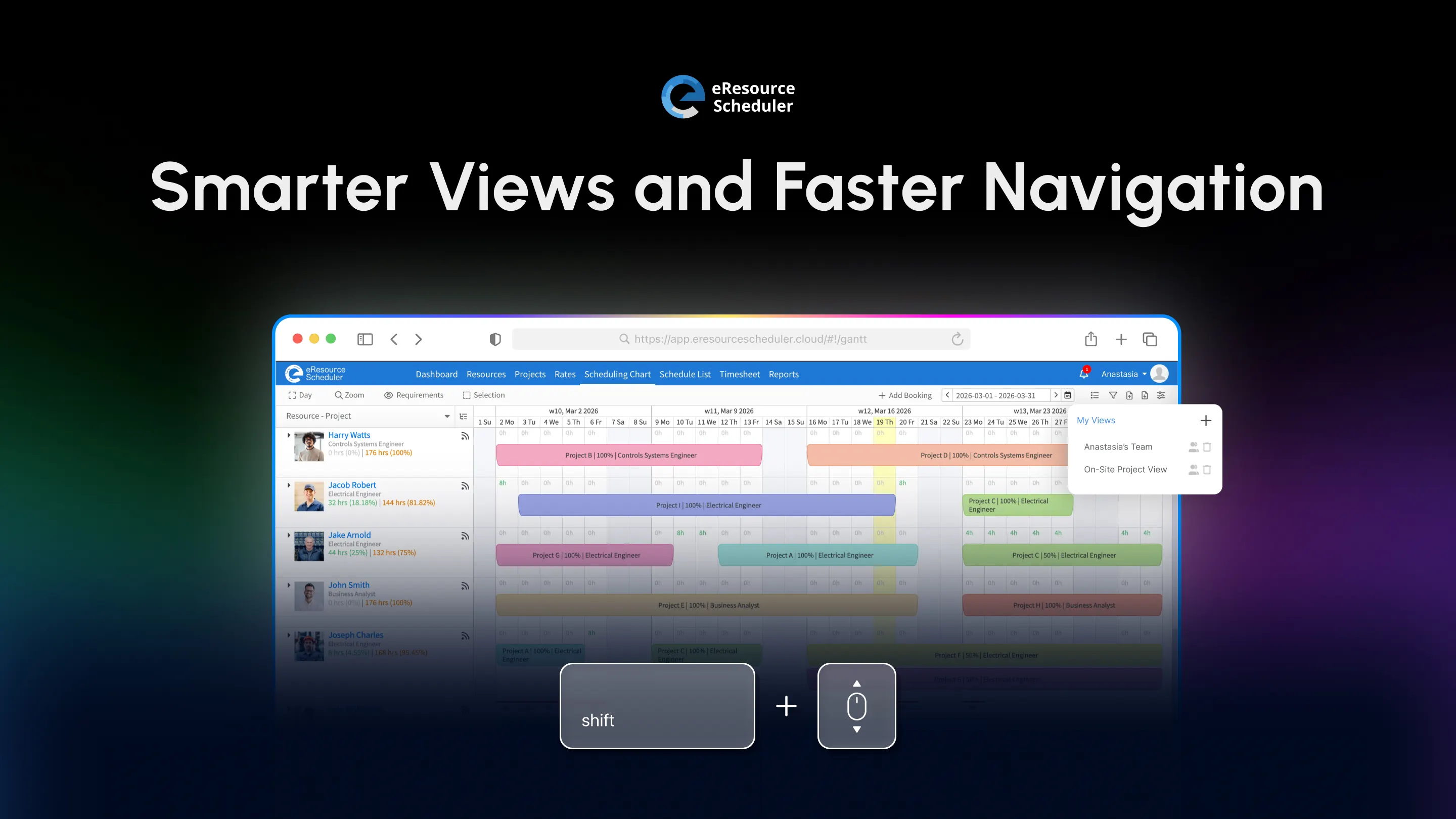
Shift and scroll works across both the Scheduling Chart and reports, so you can use the same shortcut no matter where you are in eRS.
Both updates are live and available to all eResource Scheduler users. Create a new view and share it in one step, or jump into your scheduling chart and try the Shift + scroll shortcut.
 ALL FEATURES INCLUDED