




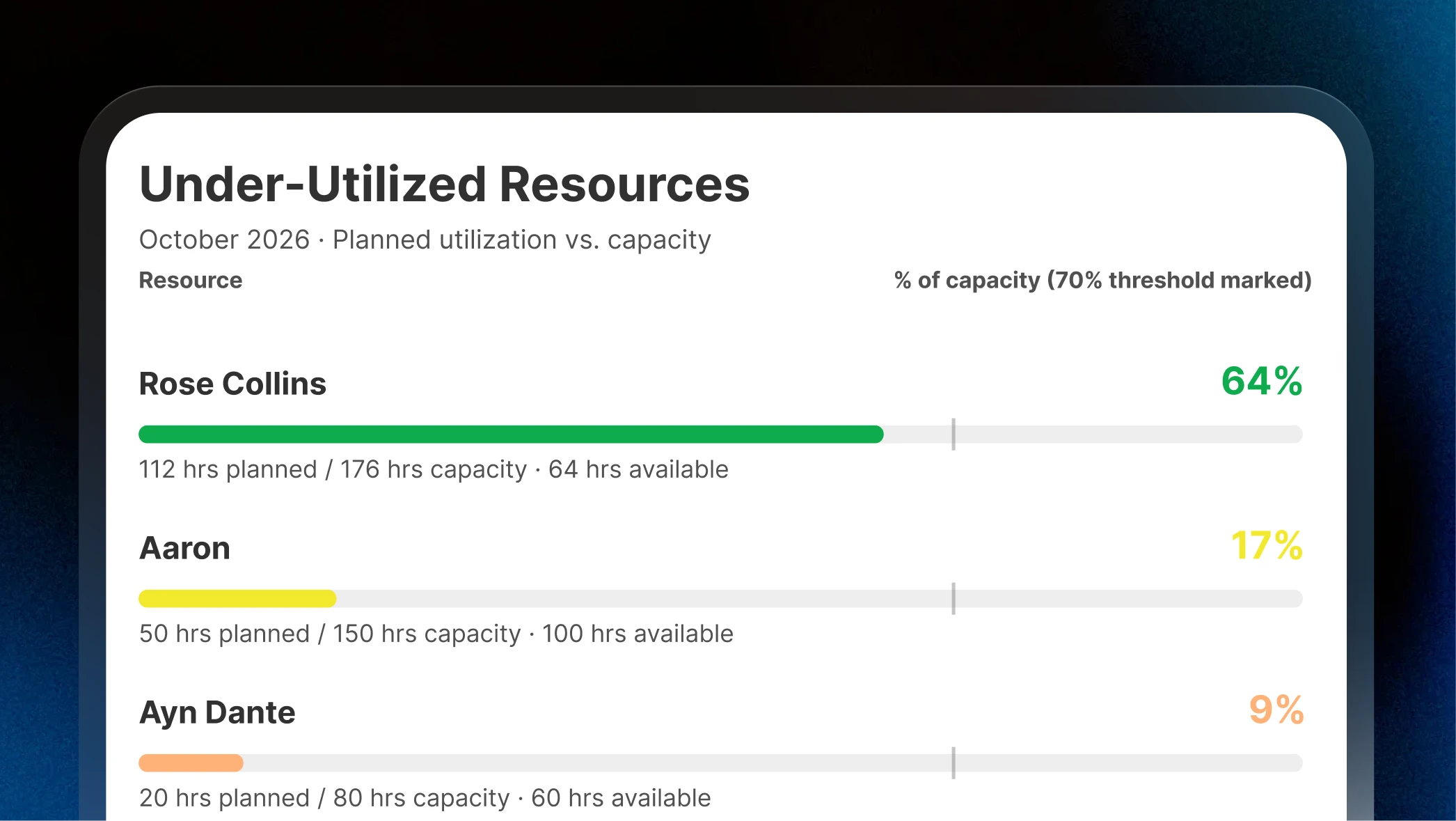
Turn a Question Into a Report, Instantly
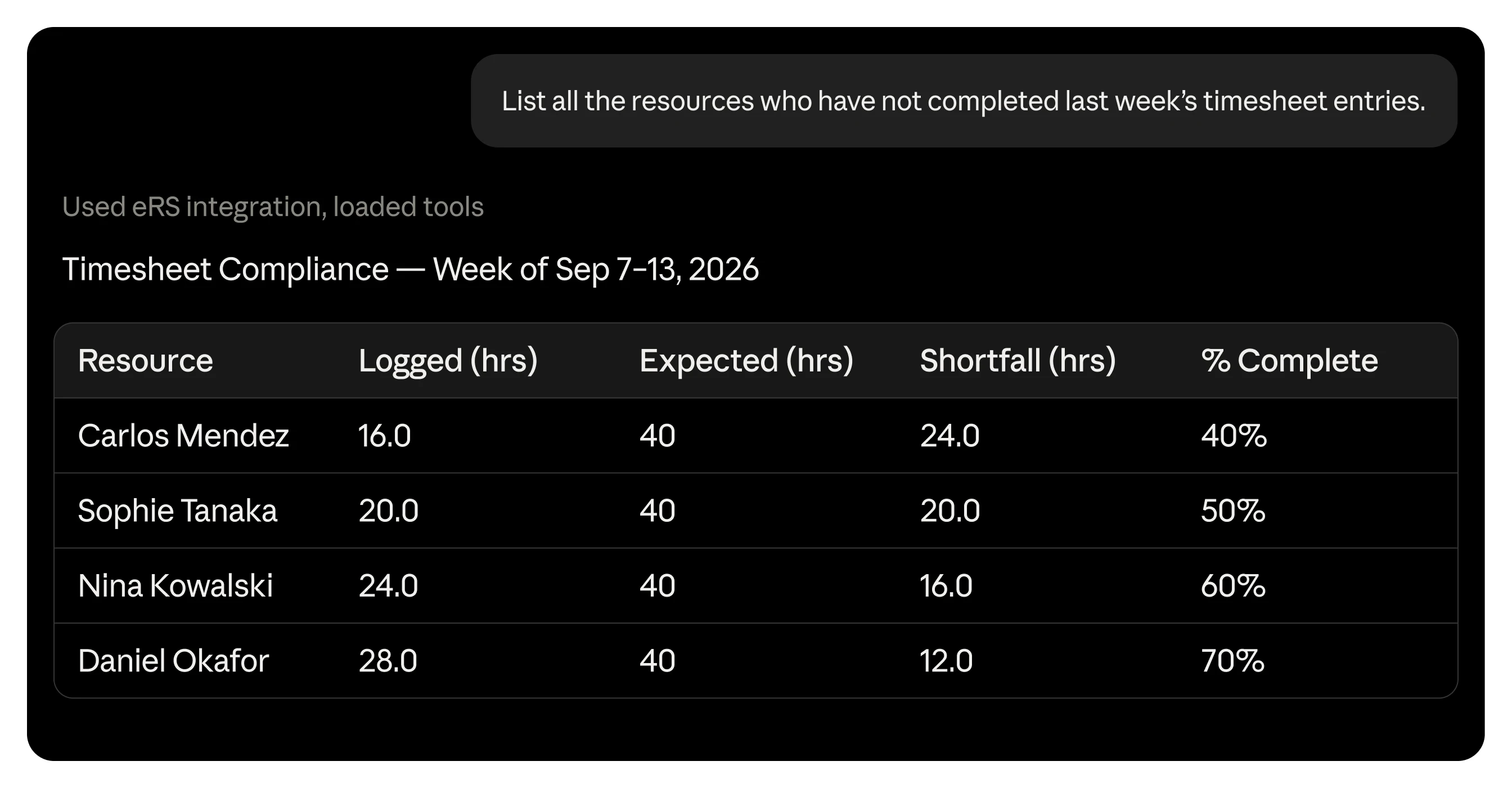
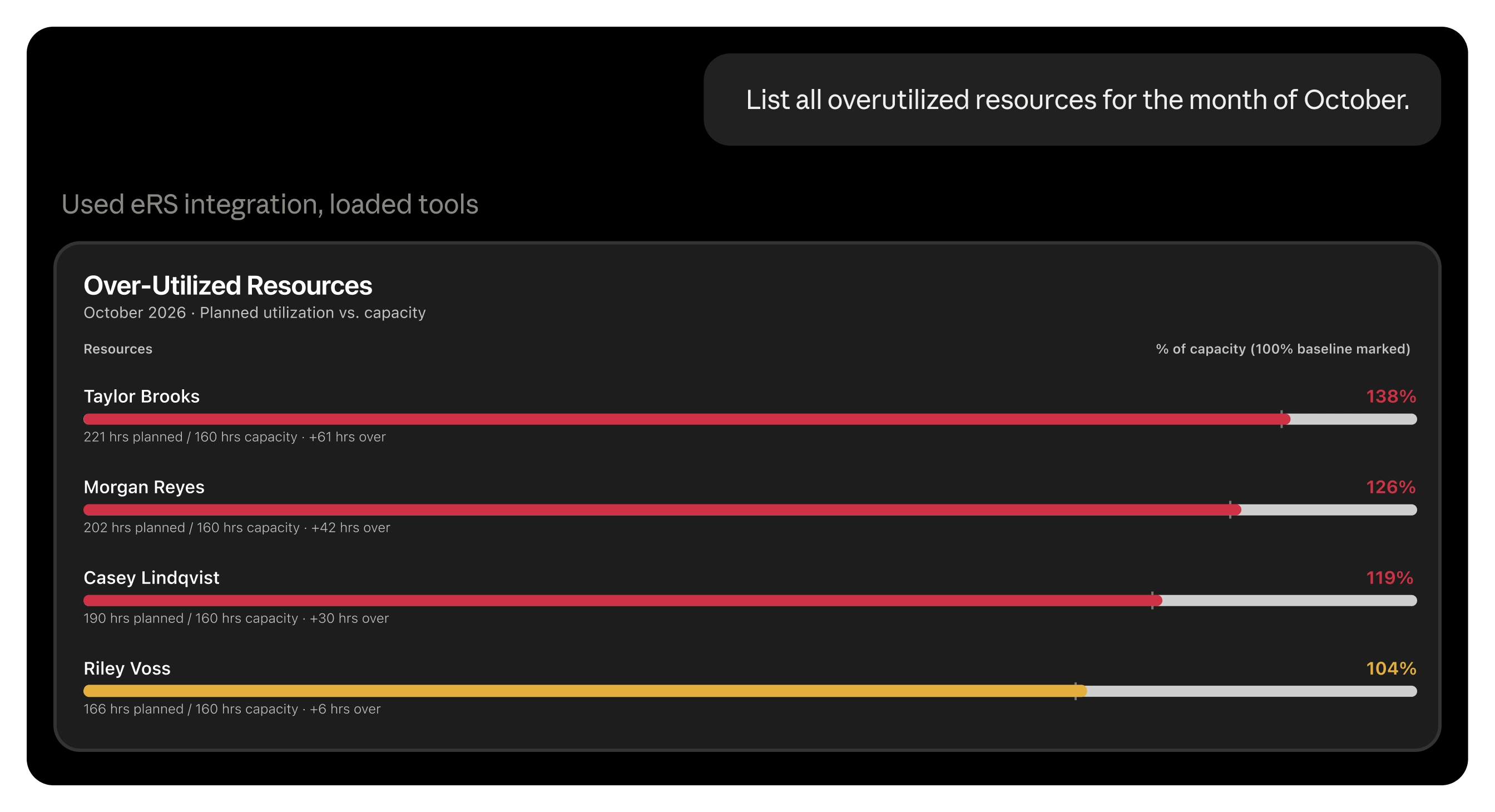
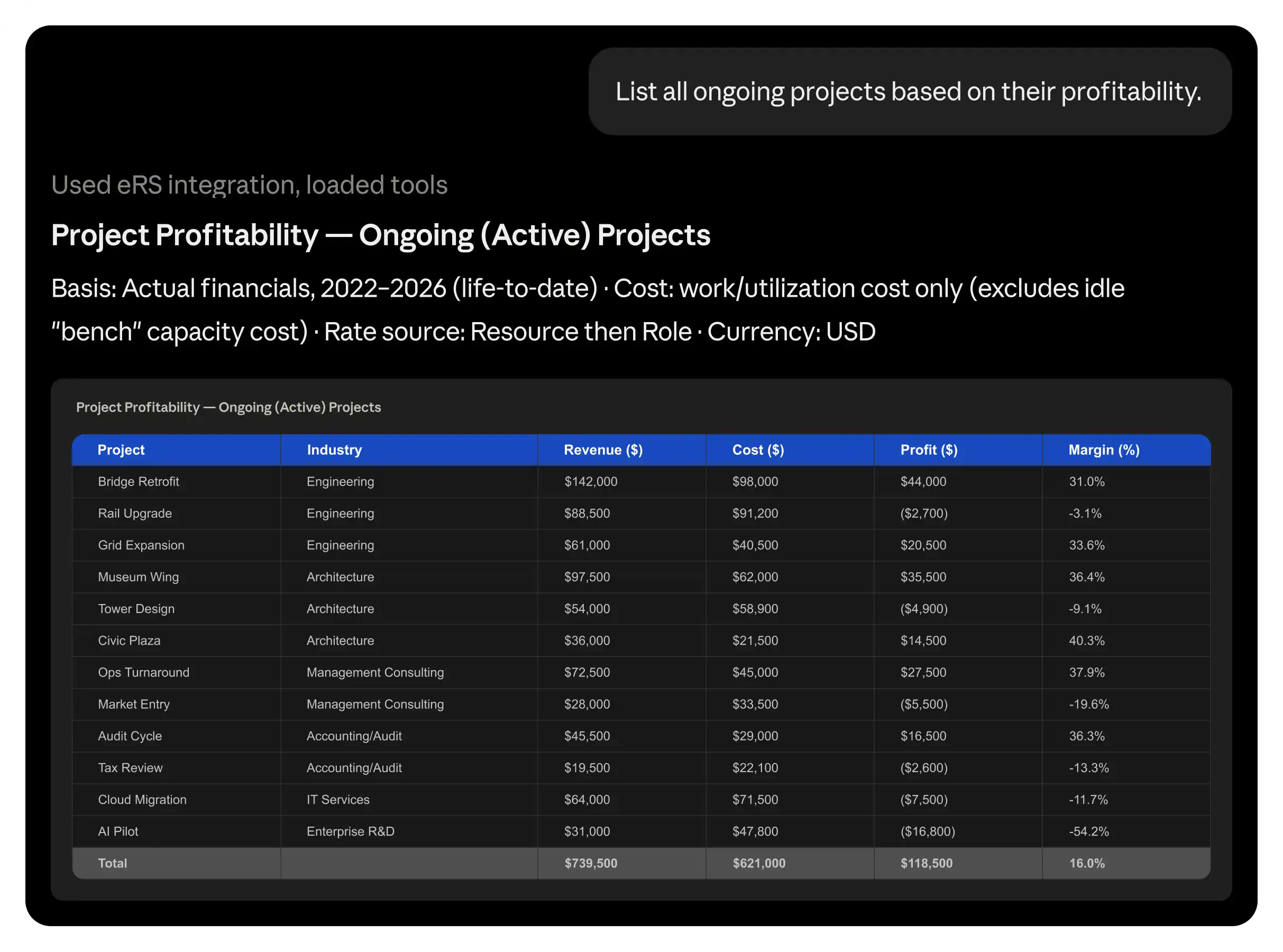
Utilization this month, one team against another, a custom view built around exactly what you're asking. Answered the moment you ask it.
Available in beta
Connect eResource Scheduler to Claude, Microsoft Copilot Studio, ChatGPT, and other AI assistants. Your team's next schedule is just a chat away.
30-Days Free. No credit card needed.
Works with




Utilization this month, one team against another, a custom view built around exactly what you're asking. Answered the moment you ask it.
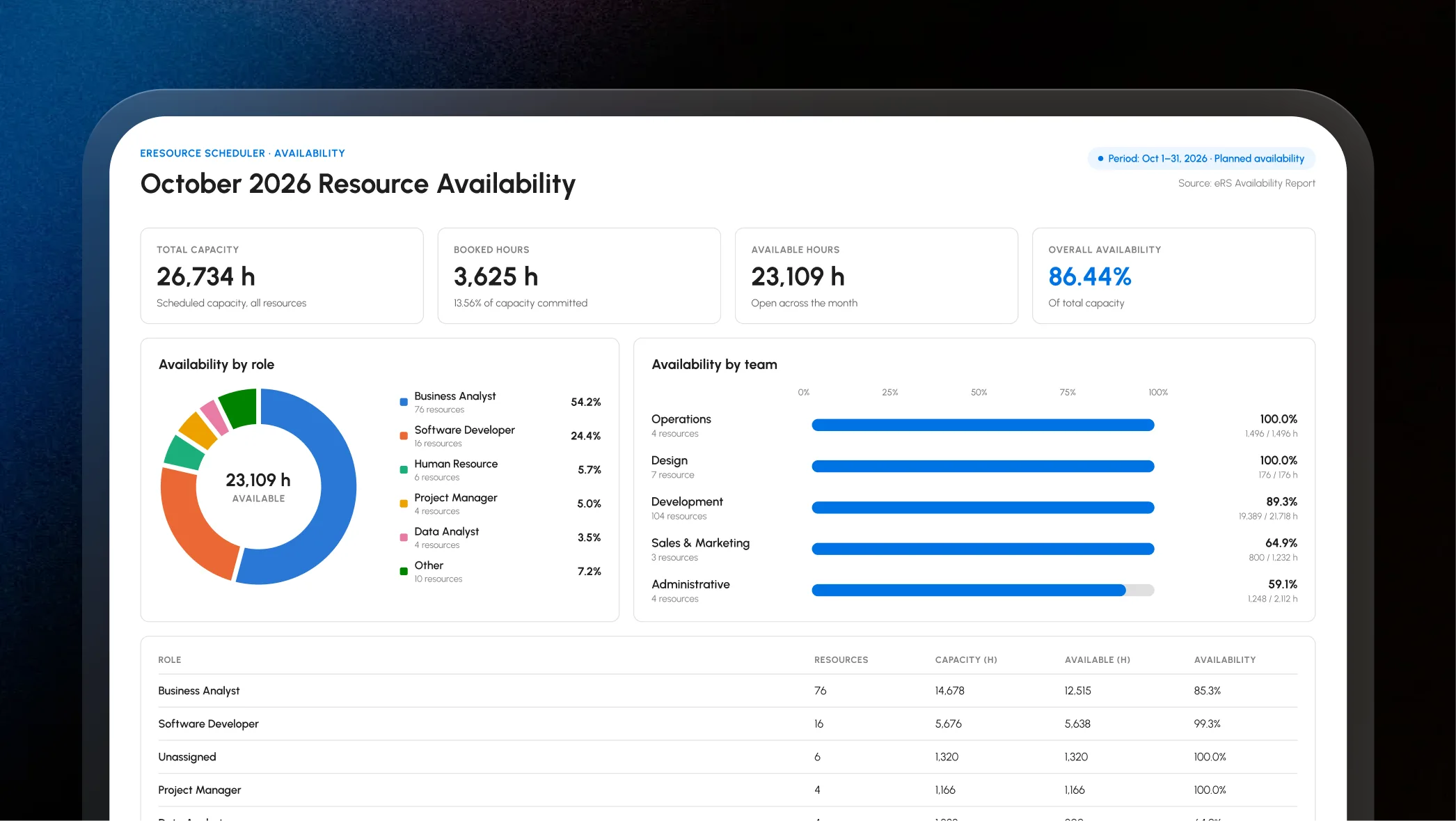
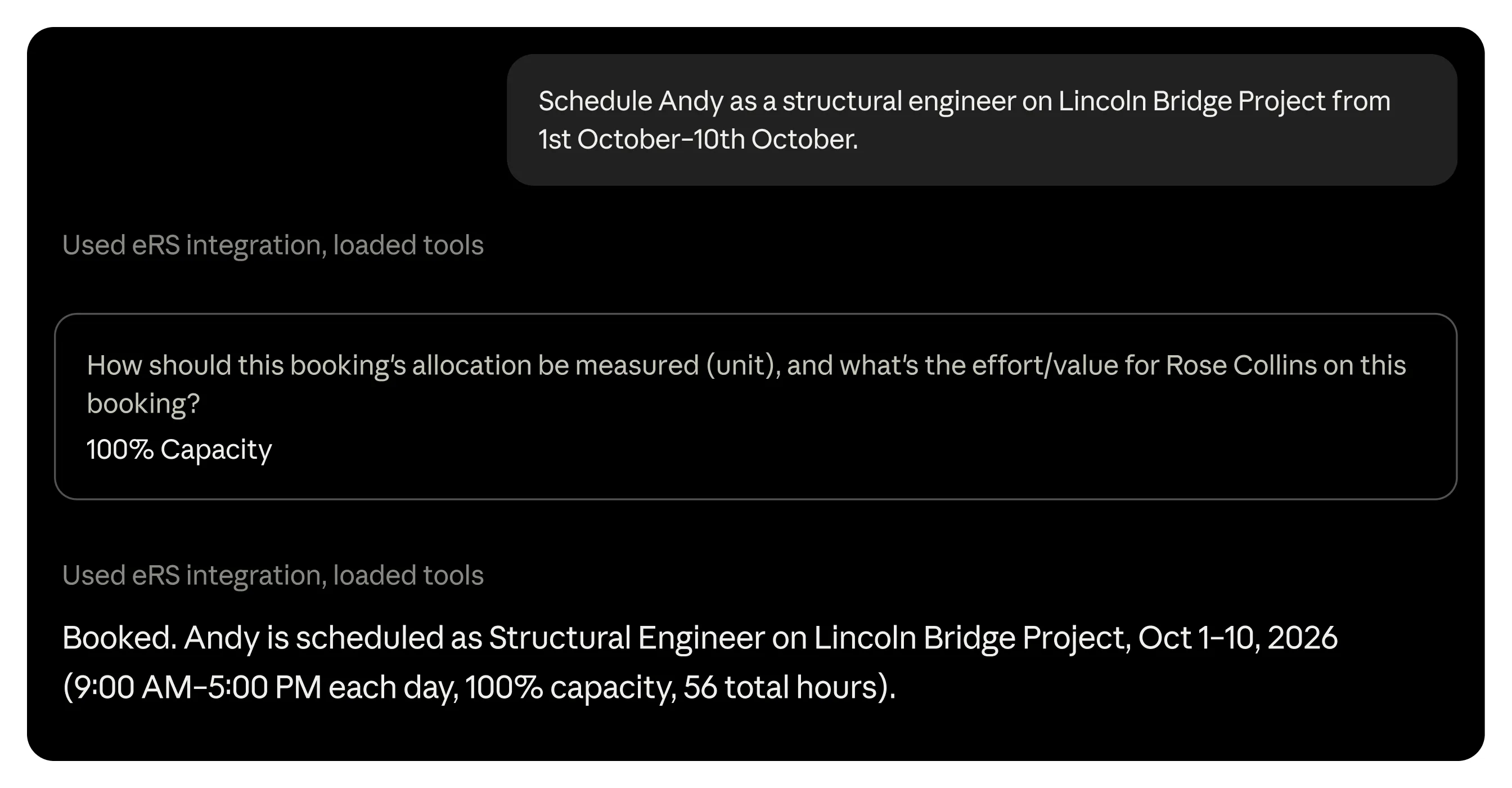
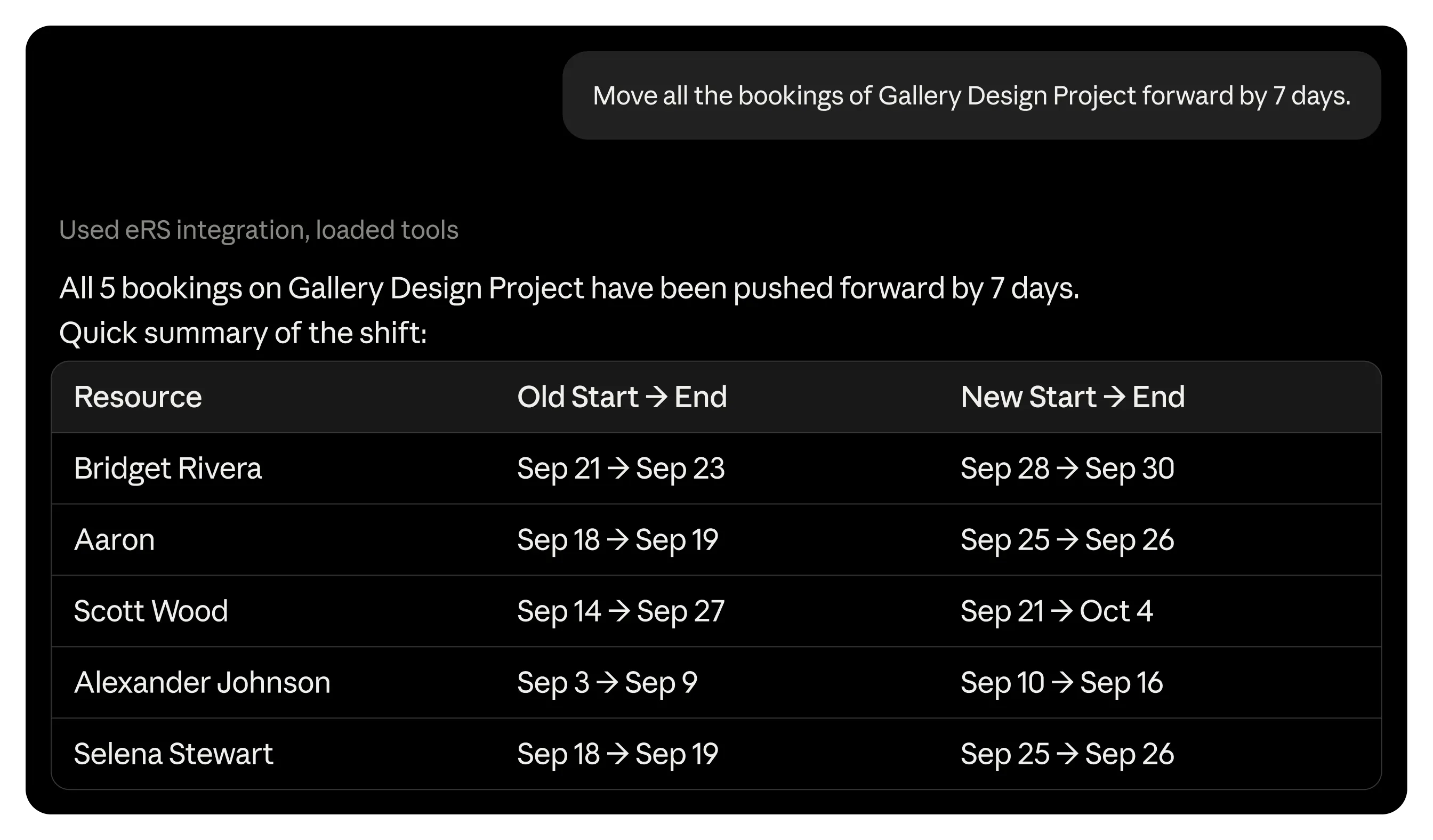
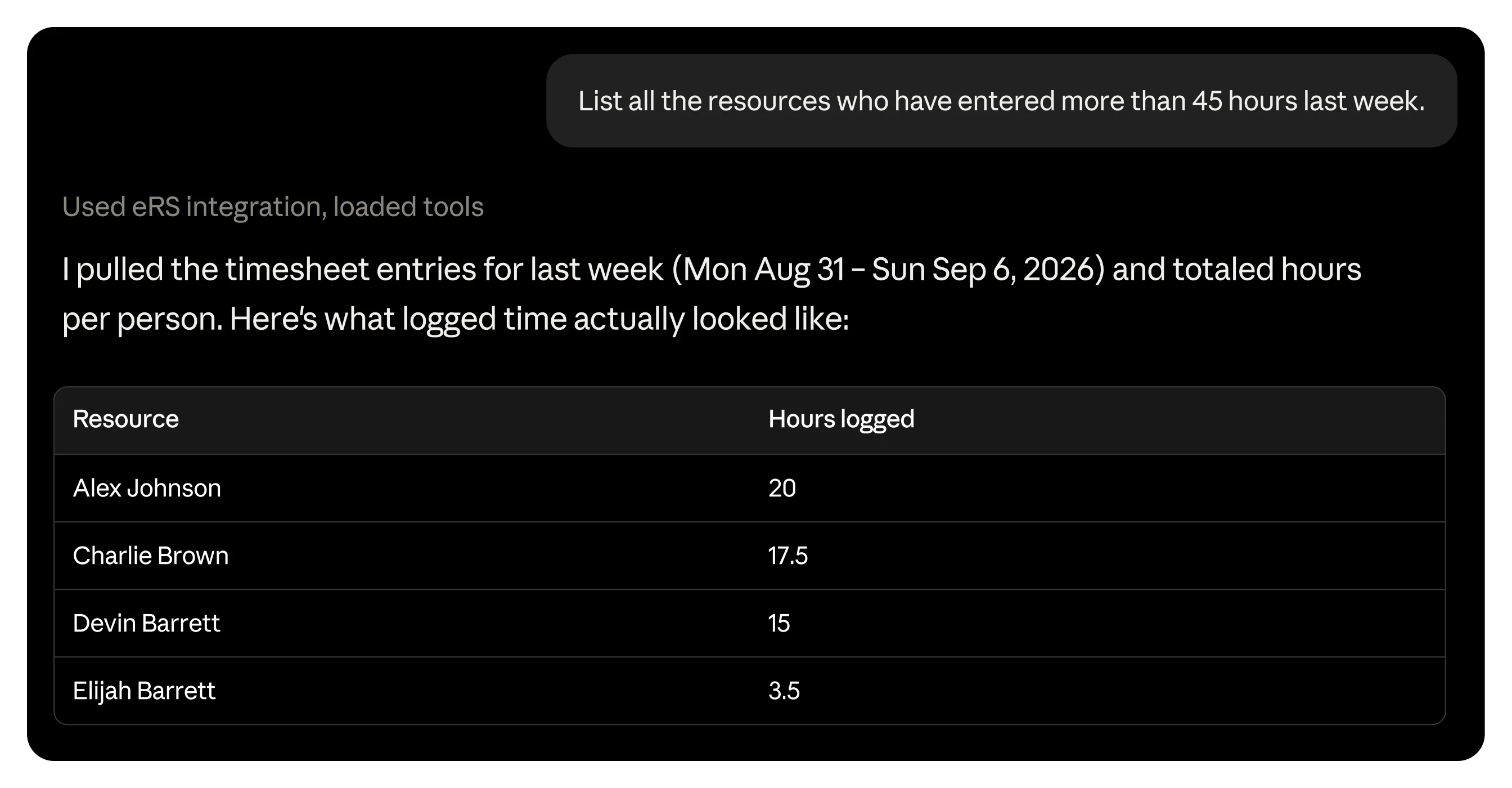
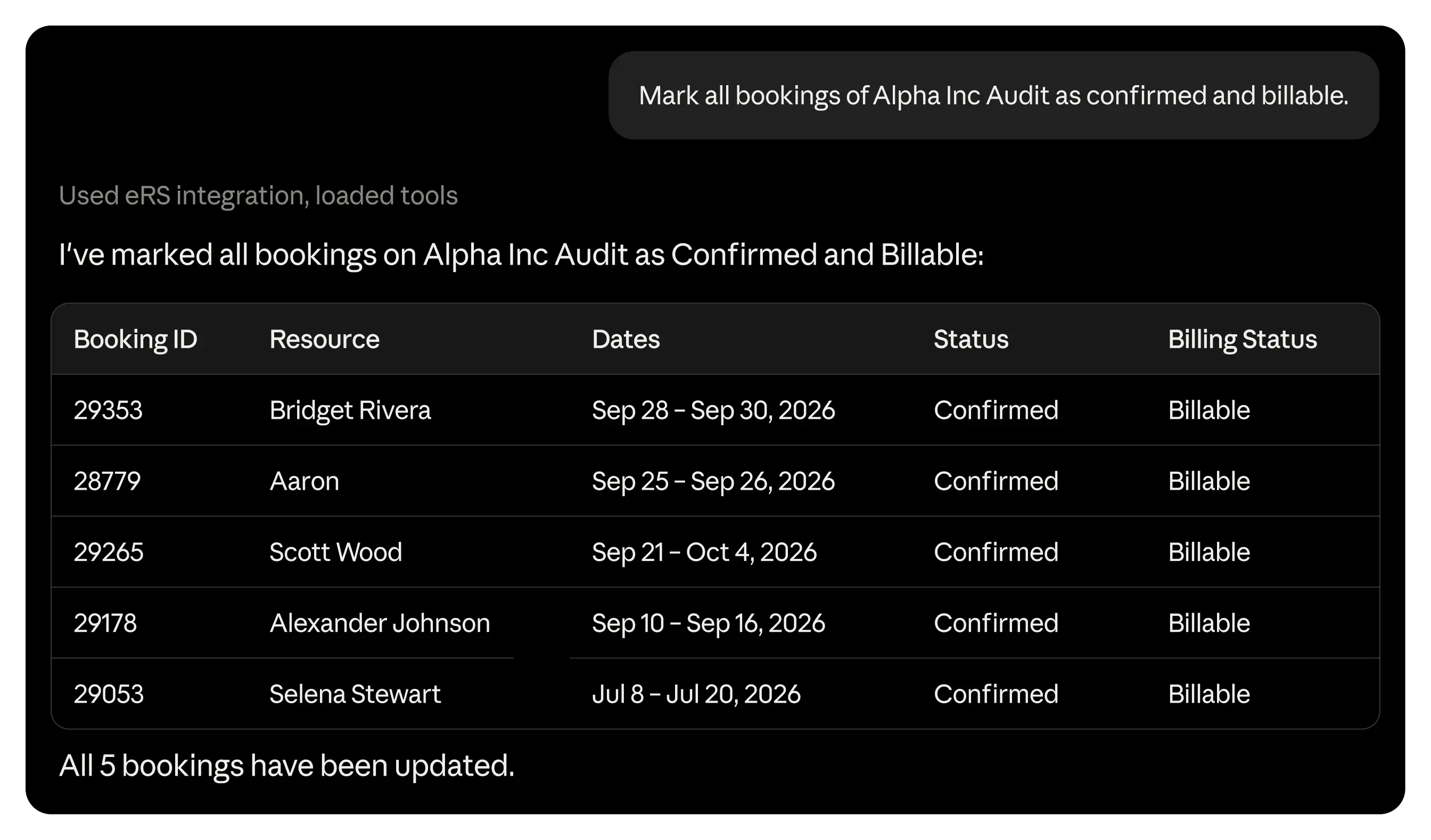
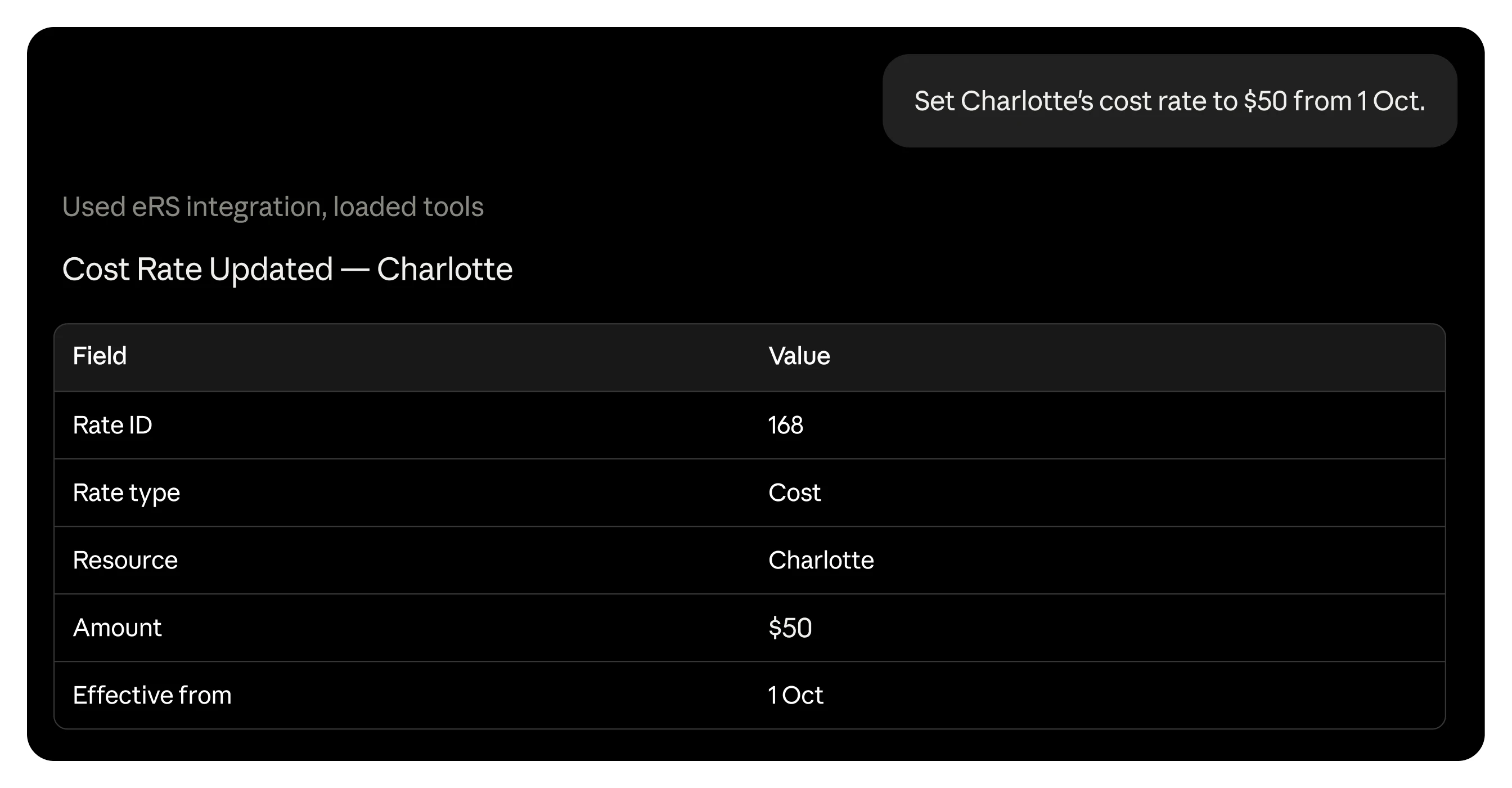
See availability across the team, then update a resource record, or a hundred of them, without switching screens.
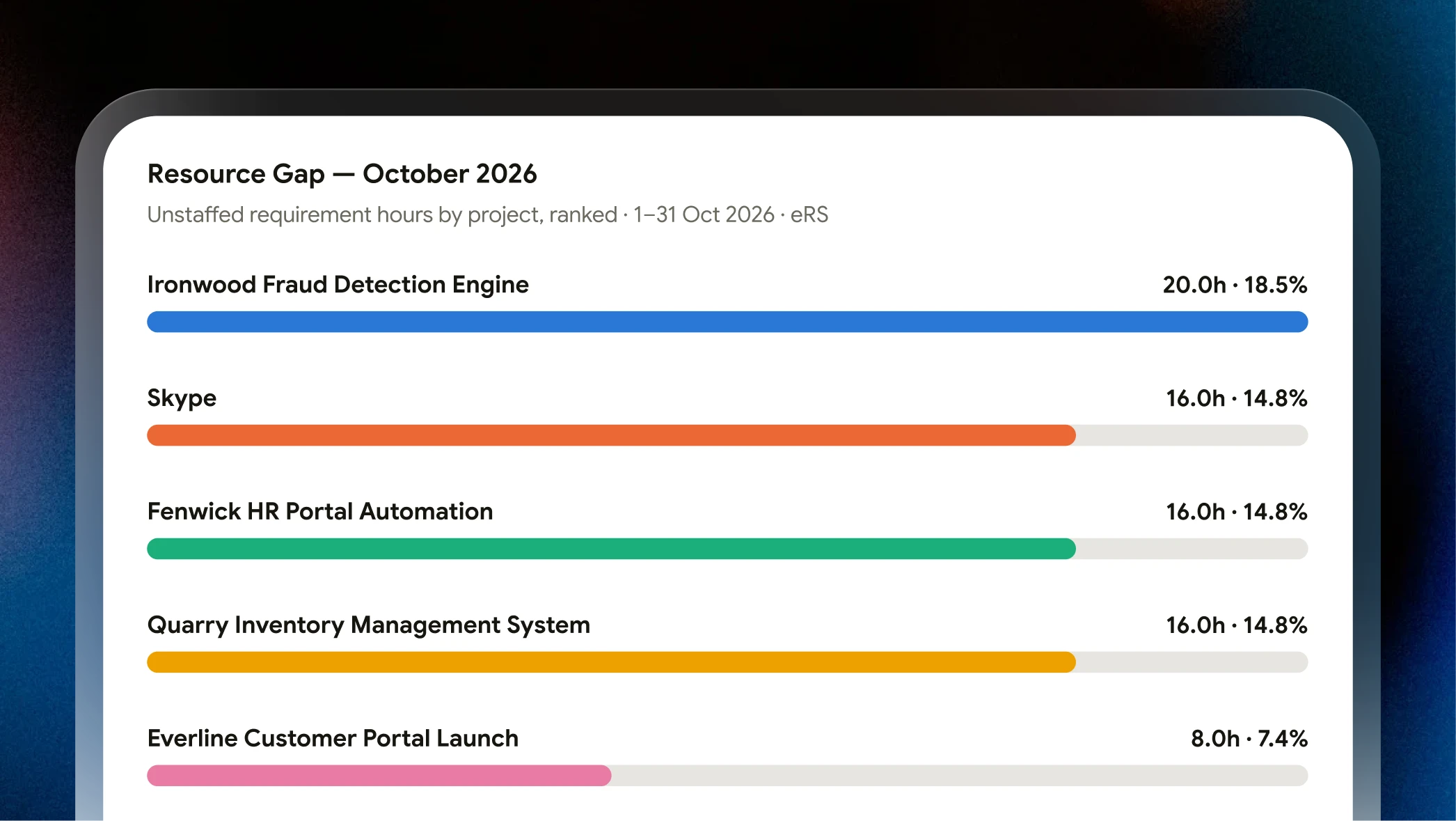
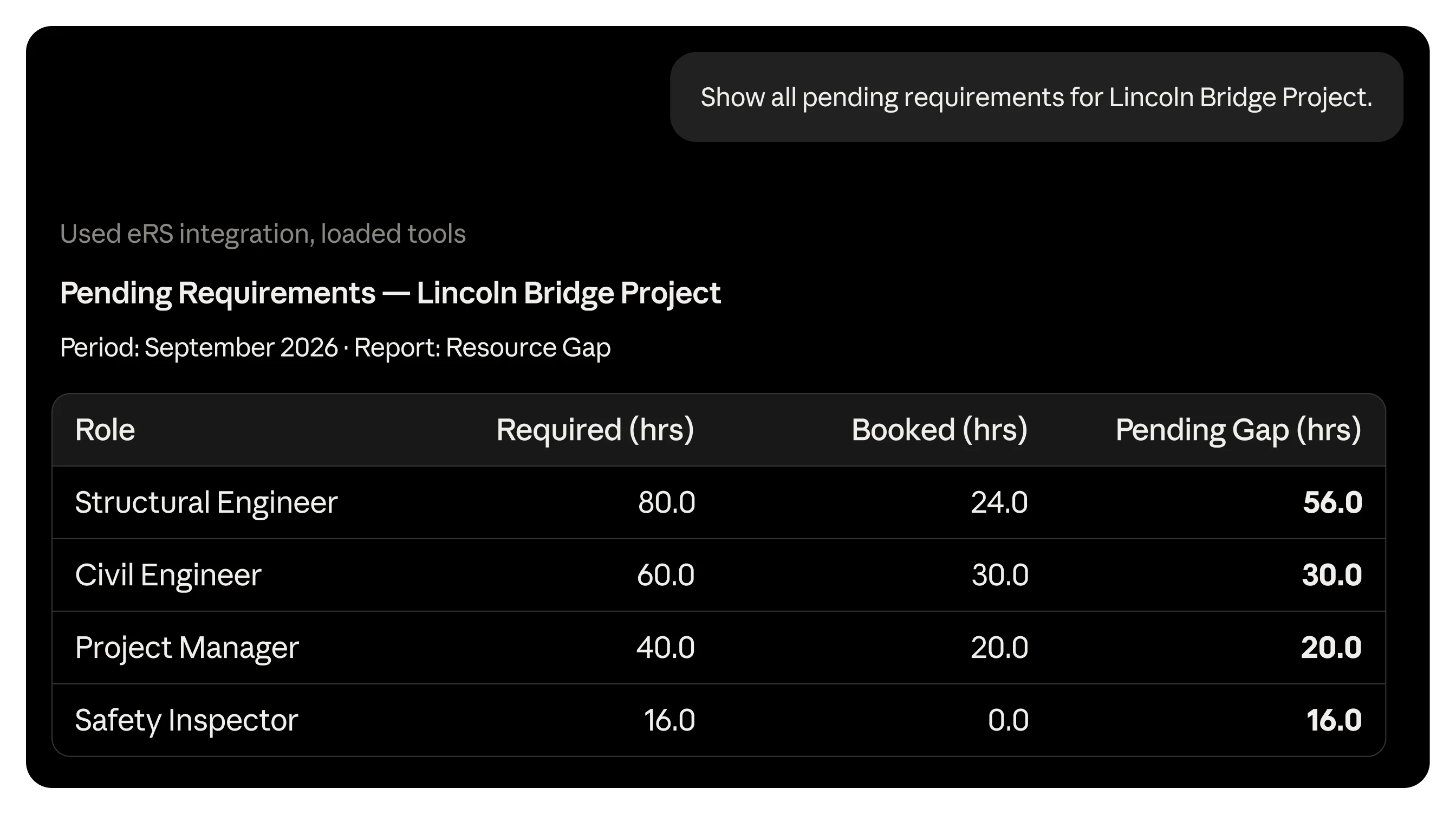
Spot what's open across every project, then create or update it in the same conversation.
Every decision is only as strong as the data it's built on. eResource Scheduler keeps that data one question away.
Click any prompt to see it in action.




Anthropic's assistant. Handles multi-step requests well and keeps track of long conversations without losing context.
Connect
Microsoft's assistant. Shows up right inside the apps people already work in all day.
Connect
OpenAI's assistant. Broad general use, from writing to research to daily tasks.
Connect
A code editor with AI built into it, not a chatbot bolted onto the side. Engineering teams tend to live in it all day.
Connect
Lives inside the code editor. Started as autocomplete, now handles larger coding tasks too.
Connect
Google's newer AI-first development platform, built around Gemini 3, where agents plan and run coding tasks.
Connect
Connect eResource Scheduler with the tools that shape how work gets done.
Start Free TrialNo new tab, no new login to remember. Just three steps, and you're asking eResource Scheduler questions from wherever you already work.
Start Free Trial 01
01
Connect Claude, ChatGPT, Microsoft Copilot, or whichever AI assistant you use, to eResource Scheduler. Setup guide →
 02
02
Capacity, timesheets, financials, whatever you need to know, ask it directly in plain English.
 03
03
Update a schedule, create a resource, approve the timesheet, or create the requirement, all without leaving the chat.
FAQs
Everything you need to know about scheduling resources, tracking time, and managing teams with eRS.
What is MCP?
MCP stands for Model Context Protocol, an open standard that lets AI assistants securely connect to external software and take real action inside it. The eRS MCP Server is eResource Scheduler's implementation of that standard. It translates a plain-language request into an actual eRS action, like a booking or a timesheet entry, and returns the result. It doesn't replace the eRS web app or store your data anywhere separately.
Who can use the eRS MCP Server?
Any eRS user whose admin has enabled MCP for the account can connect an AI assistant to eRS.
Which AI tools work with eRS?
Claude, ChatGPT, Cursor, GitHub Copilot, and Google Antigravity all have verified setup steps for the eRS MCP Server. Any other client that supports the MCP standard over remote Streamable HTTPS should also connect, since eRS follows the open protocol rather than a proprietary one.
How do I get started?
Enable MCP from eRS Settings, connect an AI assistant using its own MCP configuration steps, then sign in with your eRS account through OAuth in the browser.
Does the MCP server respect my eRS permissions?
Yes, completely. The assistant can only see and act on what your signed-in eRS account is already permitted to access. Nothing is unlocked by asking through the assistant that wasn't already available to that role inside eRS itself.
Is my data used to train AI models?
eResource Scheduler doesn't control what a connected AI client does with the data it retrieves once that data leaves eRS. That's governed by whichever assistant is connected, Claude, ChatGPT, or otherwise, so it's worth checking that provider's own data retention and model-training settings if this matters to your organization.
Is there a cost to connect?
There's no separate cost from eResource Scheduler to use the MCP Server. Usage costs from the AI tool itself depend on that provider's own pricing.
Do I need coding or technical experience to use it?
No. Setup is a one-time configuration step in your AI assistant's settings, and after that, everything runs on plain-language requests. No scripting or API knowledge required.
Can I disconnect my AI assistant from eRS later?
Yes. An eResource Scheduler admin can disable MCP for the account at any time.
 ALL FEATURES INCLUDED